
by Bill Hand | Nov 9, 2015 | Uncategorized
 Take a look at this website’s banner. Do you see a background of two digits: 0 and 1? They’re the foundation (called a binary system) for all computer digital circuits that have just two states: Off (0) and On (1). Computers perform their functions by reading patterns of bits — the 0s and 1s.
Working with just 4 bits, we can represent the numbers 0 to 15. The 0s and 1s are read from right to left, and with each move to the left, the value of bits increases by a factor of 2. Let me show you what I mean:
Numeric value of bit: 8 4 2 1
Number represented: 0 0 0 0 = Zero (0+0+0+0=0)
0 0 0 1 = One (1+0+0+0=1)
0 0 1 0 = Two (0+2+0+0=2)
0 0 1 1 = Three (1+2+0+0=3)
0 1 0 0 = Four (0+0+4+0=4)
0 1 0 1 = Five (1+0+4 +0= 5)
0 1 1 0 = Six (0+2+4+0=6)
0 1 1 1 = Seven (1+2+4+0=7)
1 0 0 0 = Eight (0+0+0+8=8)
1 0 0 1 = Nine (1+0+0+8=9)
1 0 1 0 = Ten (0+2+0+8=10)
You can add and subtract with the binary system, too. (It’s different from the base 10, or decimal, mathematics we were all taught.) For example:
1100 (12 decimal) 0111 (7 decimal)
– 0111 (7 decimal) + 0101 (5 decimal)
0101 (5 decimal) 1100 (12 decimal)
Some recent supercomputer designs are experimenting with using light instead of electronic circuits. Since light can have many discreet intensities, a single light channel can represent many different numbers.
Plus, light does not generate as much heat as digital circuits so light-based computers could run much cooler that current designs. Some laboratories are also experimenting with chemical-based designs.
(Come on…admit it. This is fun stuff to learn!)

by Bill Hand | Sep 7, 2015 | Uncategorized
The article first appeared in Microsoft’s On The Issues blog on December 14, 2014. Several days ago, it was referenced again on a tech forum I belong to. Microsoft is going after companies who charge for bogus IT support, some of whom add insult to injury by then stealing personal information.
Such scammers remind me of, say, a discount carpet store. The writing on the windows shouts, “Going Out of Business! Must Liquidate!” A month later, the store remains, along with all of its inventory. The only thing that has changed is the business name (your clue that something fishy is going on). Any entity such as this is not to be trusted, nor should any caller who claims to have a fix to a computer problem you never knew you had.
Your take-away from this post? Heighten your awareness of scammers by reading Microsoft Takes Action Against Tech Support Scammers. It’s a quick read, provides some good tips and supplies contact information if you think you’ve been scammed. Let’s get these fraudsters!

by Kimberly | Mar 8, 2015 | Uncategorized
 Don’t Let Your Data Be Held Hostage
That’s not a catchy heading—it’s a warning. There’s a dangerous Trojan called Cryptolocker that encrypts the user data residing on your computer (irreplaceable documents, photos, music, etc.). Then you’re sent a message. It reads something like this: “Pay $500 within 2 days to recover your files. Otherwise, your documents will be lost forever.” Some people have paid the extortionists. I don’t want you to be one of them.
How Your Computer Is Infected
By unknowingly downloading nefarious links. For instance, you might get an e-mail telling you that your browser, Chrome, needs an update. Or, you might receive a message telling you that a package is being held at UPS or FedEx, or that your plane tickets are waiting for you at the Delta counter. In every instance, you’re instructed to click on the link provided. Don’t.
How To Tell If Links Are Legitimate
Hover over any link. At the bottom of your screen (generally at the lower left) you’ll see the full URL displayed in a light gray box. If the address doesn’t match the message or if you’re the least bit skeptical, don’t click.
Practice This Step
Try the above right now. Hover over any of the links in this bulletin. Find the URL. See how it matches the content mentioned in the articles. Get in the habit of always looking at site URLs before you click.
Good News
In the process of having this article prepared, I came across Krebs On Security. It reports that several security firms joined together and now have a free online service to help people recover their encrypted files. For more information, see decryptolocker.com.

by Bill | Jan 11, 2013 | Uncategorized
A client of ours was excited to learn about putting her computer into hibernation. A long-time computer user, she hadn’t heard of this feature before; we thought others might not know either. What’s so special about hibernation? This “snapshot shutdown,” as it’s called in the industry, allows your computer to start up very quickly the next time it’s turned on.
Here’s why this feature got its moniker. As the computer is put into hibernation, it takes a snapshot (or picture) of everything the computer is doing and everything shown on the screen. All of that is then saved to the hard drive and the power is automatically turned off.
When you next start the machine, rather than going thru all of the Windows start-up procedures, that snapshot is just read back from the hard drive and Windows resumes operating exactly as it was before going into hibernation. You don’t have to remember where you left off on your last project!
Energy-conscious individuals will be happy to read that this mode consumes no energy. Hibernation should also be of special interest to laptop users for whom battery life is a limiting factor.
Steps To Put Your Computer Into Hibernate:
1. Click Start in the lower left of the screen.
2. Click Turn Off Computer or Shut Down Computer, whichever one your screen shows.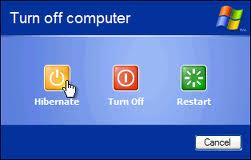
3. If Hibernate is listed as the next option, click on that. If it isn’t and Stand By is shown, depress the Shift key and the Stand By key simultaneously. With the option now having switched to Hibernate, click on that.
4. If, in either case, Hibernate isn’t listed, go to Control Panel>Power Options and enable Hibernate.
5. Periodically (like once a week), a normal shutdown should be done to allow Windows to take care of housekeeping functions.
6. Contact us if you have any problems with the above.
by Bill | Nov 6, 2012 | Uncategorized
Back when I did systems engineering and software development for medical imaging equipment, I’d occasionally see an error message from the operating system that read something like, “Unknown Error Code: 10241.” Now, that always struck me as funny since it clearly was not an “unknown” error code. It was right there—“10241.” Contacting the computer manufacturer’s technical support was not helpful. They’d look up the error code and then state they couldn’t help since the error code was unknown. “But, wait a minute,” I’d ask. “Didn’t some software people enter those five numbers as a clue to where in their code something went awry?” I never did get an answer.
Imagine if the warning light on your car’s dashboard said: “Check Something.” What would that mean? (more…)

by Bill | Oct 31, 2012 | Uncategorized
“I can’t send or receive any e-mail. Outlook keeps asking for my password. I think my computer may have a virus!” That was the phone message from a client last week. I called her as soon as I could and we tried to determine the problem over the phone. We checked the e-mail account settings and the stored user name and password. Everything seemed in order. (more…)
