

A client of ours was excited to learn about putting her computer into hibernation. A long-time computer user, she hadn’t heard of this feature before; we thought others might not know either. What’s so special about hibernation? This “snapshot shutdown,” as it’s called in the industry, allows your computer to start up very quickly the next time it’s turned on.
Here’s why this feature got its moniker. As the computer is put into hibernation, it takes a snapshot (or picture) of everything the computer is doing and everything shown on the screen. All of that is then saved to the hard drive and the power is automatically turned off.
When you next start the machine, rather than going thru all of the Windows start-up procedures, that snapshot is just read back from the hard drive and Windows resumes operating exactly as it was before going into hibernation. You don’t have to remember where you left off on your last project!
Energy-conscious individuals will be happy to read that this mode consumes no energy. Hibernation should also be of special interest to laptop users for whom battery life is a limiting factor.
Steps To Put Your Computer Into Hibernate:
1. Click Start in the lower left of the screen.
2. Click Turn Off Computer or Shut Down Computer, whichever one your screen shows.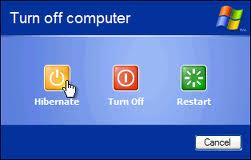
3. If Hibernate is listed as the next option, click on that. If it isn’t and Stand By is shown, depress the Shift key and the Stand By key simultaneously. With the option now having switched to Hibernate, click on that.
4. If, in either case, Hibernate isn’t listed, go to Control Panel>Power Options and enable Hibernate.
5. Periodically (like once a week), a normal shutdown should be done to allow Windows to take care of housekeeping functions.
6. Contact us if you have any problems with the above.