
by Bill | Jan 11, 2013 | Uncategorized
A client of ours was excited to learn about putting her computer into hibernation. A long-time computer user, she hadn’t heard of this feature before; we thought others might not know either. What’s so special about hibernation? This “snapshot shutdown,” as it’s called in the industry, allows your computer to start up very quickly the next time it’s turned on.
Here’s why this feature got its moniker. As the computer is put into hibernation, it takes a snapshot (or picture) of everything the computer is doing and everything shown on the screen. All of that is then saved to the hard drive and the power is automatically turned off.
When you next start the machine, rather than going thru all of the Windows start-up procedures, that snapshot is just read back from the hard drive and Windows resumes operating exactly as it was before going into hibernation. You don’t have to remember where you left off on your last project!
Energy-conscious individuals will be happy to read that this mode consumes no energy. Hibernation should also be of special interest to laptop users for whom battery life is a limiting factor.
Steps To Put Your Computer Into Hibernate:
1. Click Start in the lower left of the screen.
2. Click Turn Off Computer or Shut Down Computer, whichever one your screen shows.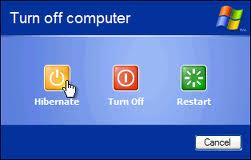
3. If Hibernate is listed as the next option, click on that. If it isn’t and Stand By is shown, depress the Shift key and the Stand By key simultaneously. With the option now having switched to Hibernate, click on that.
4. If, in either case, Hibernate isn’t listed, go to Control Panel>Power Options and enable Hibernate.
5. Periodically (like once a week), a normal shutdown should be done to allow Windows to take care of housekeeping functions.
6. Contact us if you have any problems with the above.
by Bill | Nov 6, 2012 | Uncategorized
Back when I did systems engineering and software development for medical imaging equipment, I’d occasionally see an error message from the operating system that read something like, “Unknown Error Code: 10241.” Now, that always struck me as funny since it clearly was not an “unknown” error code. It was right there—“10241.” Contacting the computer manufacturer’s technical support was not helpful. They’d look up the error code and then state they couldn’t help since the error code was unknown. “But, wait a minute,” I’d ask. “Didn’t some software people enter those five numbers as a clue to where in their code something went awry?” I never did get an answer.
Imagine if the warning light on your car’s dashboard said: “Check Something.” What would that mean? (more…)

by Bill | Oct 31, 2012 | Uncategorized
“I can’t send or receive any e-mail. Outlook keeps asking for my password. I think my computer may have a virus!” That was the phone message from a client last week. I called her as soon as I could and we tried to determine the problem over the phone. We checked the e-mail account settings and the stored user name and password. Everything seemed in order. (more…)
by Bill | Oct 27, 2012 | Uncategorized
The Pareto Principle is at play in so many sectors: mathematics, business, economics, and software development, just to name a few. This formula has been linked to Vilfredo Pareto, an Italian economist. In the early 1900s, he observed that 80% of the land in Italy was owned by 20% of the people. The Pareto Principle is also known as the 80/20 rule. That’s because, in much of life, it has been observed that 80% of the effects come from 20% of the causes.
For example, Microsoft has observed that if they fix the top 20% of the bugs in a software package, 80% of the problems, crashes, and complaints go away. In business, many have observed that 80% of a company’s sales come from 20% of the customer base. In an organizational dynamics setting, a manager may spend 80% of his or her time resolving issues involving 20% of the personnel.
In recent weeks, I have observed a mutation in the computer repair business that I call (more…)
by Bill | Oct 18, 2012 | Uncategorized
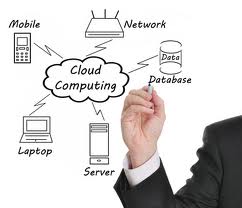
PC Assistants just implemented the BarracudaDrive cloud server. Before I describe this installation’s benefits to our clients, let me first define the new computer term, “cloud.” It means remote storage. Just like one protects essentials such as a will, birth certificate, and social security card by placing them in a safety deposit box, so can one protect their digital files—like ten years worth of taxes—by storing them on a cloud server.
All computer users should consider (more…)
