
by Kimberly | Oct 18, 2023 | Uncategorized
Imagine yourself Marco Polo in the 13th century chronicling his adventures in the Far East. Or a 17th century French fur trader experiencing Niagara Falls for the first time. Now try a 19th century Chinese laborer emigrating to California and working on the Transcontinental Railroad.
Can you conjure up some of the awe and excitement these pioneers must have felt? Did you ever long to be a pioneer yourself? To visit strange lands, learn a different language, return home a new person? Well, you are.
All of us living today are breaking fresh ground with computers, pushing the edges of IT exploration, establishing new paradigms and protocols for on-line activities, using “words” such as HTML and WYSIWYG and trying to create individual lifestyles that carefully (or haphazardly) incorporate the vast hardware and software the world has to offer.
A conversation with Bill and Susanne Gay of Menomonee Falls, WI, easily underscores the concept of 21st Century Everyman as Pioneer. These two retired teachers (Bill, English Composition; and Susanne, Foreign Language) recalled their early interactions and wonderment with computers.
 Nearly 30 years ago, a Social Studies colleague of Bill asked if he had “heard about this thing called the internet?” Bill was taken to their school’s Math Center where, sitting in front of a computer, his fellow teacher said, “Let’s walk down the Champs-Élysées.” As parts of Paris appeared on the screen, including close-ups of cars moving along the famous boulevard, Bill thought he was seeing alchemy.
To heighten the experience, his friend said, “Now we’re going to take a trip to the Louvre.” To Bill’s amazement, he was soon viewing some of his favorite paintings as they took a virtual trip thru the museum. Bill was excited when he arrived home that afternoon. He asked Susanne, “Have you heard about the internet? We need to have this at home.”
Around the same time, Bill and Susanne visited his aunt and uncle in St. Louis who had just purchased a Dell for the sole purpose of communicating with their far-away children and grandchildren via the internet. His relatives’ excitement with this technology was palpable. So, all things considered, Bill and Susanne wanted to be connected to the net, too. They decided to replace their old Apple IIe with a Dell that had state-of-the-art dial-up for full internet accessibility.
 In the early years of educational computer programs, Bill remembers sitting in his school’s Apple Lab and being introduced to Bank Street Writer, one of the first word processors. (According to Wikipedia, “It was generally thought at the time to have changed the way students learned to write … and ma[de] the process of editing easier than with pencil, paper and eraser.”) “I stood there thinking I was looking at magic and couldn’t wait to try it myself,” he added. It was also on that day in that lab when Bill used the word “cursor” for the first time.
Soon Microsoft’s word-processing package made editing even easier. Kids could make revisions with ease, using “cut” and “paste.” Footnotes could be moved quickly from one page to the next. “All of a sudden,” Bill said, “it was like the second coming.”
Another early educational software package called The Oregon Trail (History Software by the Learning Company) was a wonderful classroom tool. Bill described it as “miraculous.” The computer game was meant to teach students the realities of travelling the Oregon Trail by covered wagon. Kids assumed different roles and were prompted to make decisions all along their “journey.” Of the period when this computer program and many others like it were being released, Bill stated, “What a time to be teaching.”
 At the end of the interview, Bill and Susanne recounted the night of July 20, 1969, when they watched the first moon walk. Along with his grandmother and, believe it or not, a room full of strangers, Bill said they all watched silently, in awe. “We felt ourselves as pioneers,” he stated. It was true then. It’s still true today and every day as we move further and further into the Golden Age of Technology.
The Gays, by the way, are grateful to have Bill Hand as their guide!
by Kimberly | Oct 18, 2023 | Uncategorized

Actually, there are many reasons why I’m asking you to donate your computers to IndependenceFirst. Using “2” in the header was just my way of grabbing your attention. After all, preserving our environment and helping non-profits is important stuff and I want to encourage everyone to do their part.
Why IndependenceFirst?
They empower people with disabilities and promote full inclusion in our community. To help accomplish those goals, IndependenceFirst established a computer recycling program. Here’s what it does:
- Cleans and refurbishes donated personal or business computers
- Makes recycled computers available to people with disabilities
- Distributes 350-400 desktop computers a year
- Meets with recipients to give basic instructions on their “new” computers
- Provides computer training (and guidance with things such as social skills) for many of the recycling program’s volunteers
- Works with vets
Why Recycle At All
The following is for those of you who may need a reminder (again, I don’t think any of my clients do, but maybe you’d like to share this information with someone who does).
- Preserves Resources
“When you discard a 5-pound laptop, you are also throwing away the 20,000 pounds of raw materials it took to make it.” ~ TechSoup, Ten Tips for Donating a Computer
- Keeps lead, mercury, zinc and carcinogens from leaking into the water supply and surrounding environment.
“Electronic waste represents 2% of U.S. trash in landfills, but it equals 70% of overall toxic waste. ~ ElectronicHouse.com
How to Donate to IndependenceFirst
Always a good idea to call first—let them know you’re coming and what you’re donating (no CRTs), verify the hours, etc. Here’s the number for the main office in Milwaukee: (414) 291-7520 (V/TTY).
- Fill out the necessary form.
- Take out the hard drive and destroy it. Or, one of the IndependenceFirst volunteers can do it for you. If you’d like to know what a hard drive looks like and how to remove it yourself, here’s a quick and nicely-done video.
- Drop off at the Milwaukee main office: 540 South 1st Street; or,
- If you have a large donation (businesses frequently do), arrange a time for pick-up.
- Give yourself a shout-out for doing a good deed.
If Not a Computer Donation, How ‘Bout…
• Making an alternate donation to IndependenceFirst. Here are some suggestions.
• Serving as a volunteer. Get started here.
• You can also support this non-profit organization online (it does make a difference). “Like” their Facebook page or follow them on Twitter.
Thank You
Special thanks to these people for taking time to share the IndependenceFirst story for my website:
Starlet Hayes, Fund Development & Communications Director
Matt Annen, Network Administrator/Computer Recycling Program Supervisor
Joel Hoedel, Network Administrator
and the Computer Recycling Program volunteers

by Kimberly | Oct 18, 2023 | Uncategorized
What To Do With Old Computers, ‘Cause Tossing Them In the Garbage Is Not an Option
I. Decide What To Do With Your Hard Drive
This is where all your data has been stored, so take every precaution to prevent it from being misappropriated. Whether you decide to undertake all the necessary steps yourself or have PC Assistants do some of it or all of it for you, here’s what needs to happen:
• Take out the hard drive
• Scrub it (erase everything) and recycle or donate; OR
• Don’t scrub it and:
– Put it into an external disk enclosure for back-up; or
– Put it someplace safe; or
– Smash the hard drive with a sledgehammer or drive over it with your car (seriously, we have clients who’ve done both) and then recycle or donate. (The sledgehammer, by the way, is the most effective.)
II. Decide What To Do With Computer Monitor, Keyboard, Accessories
If you have any questions about finding a new “home” for your computer, please give us a call.
by Bill Hand | Jan 20, 2017 | Computer Problems, Uncategorized
Cover Your Webcam
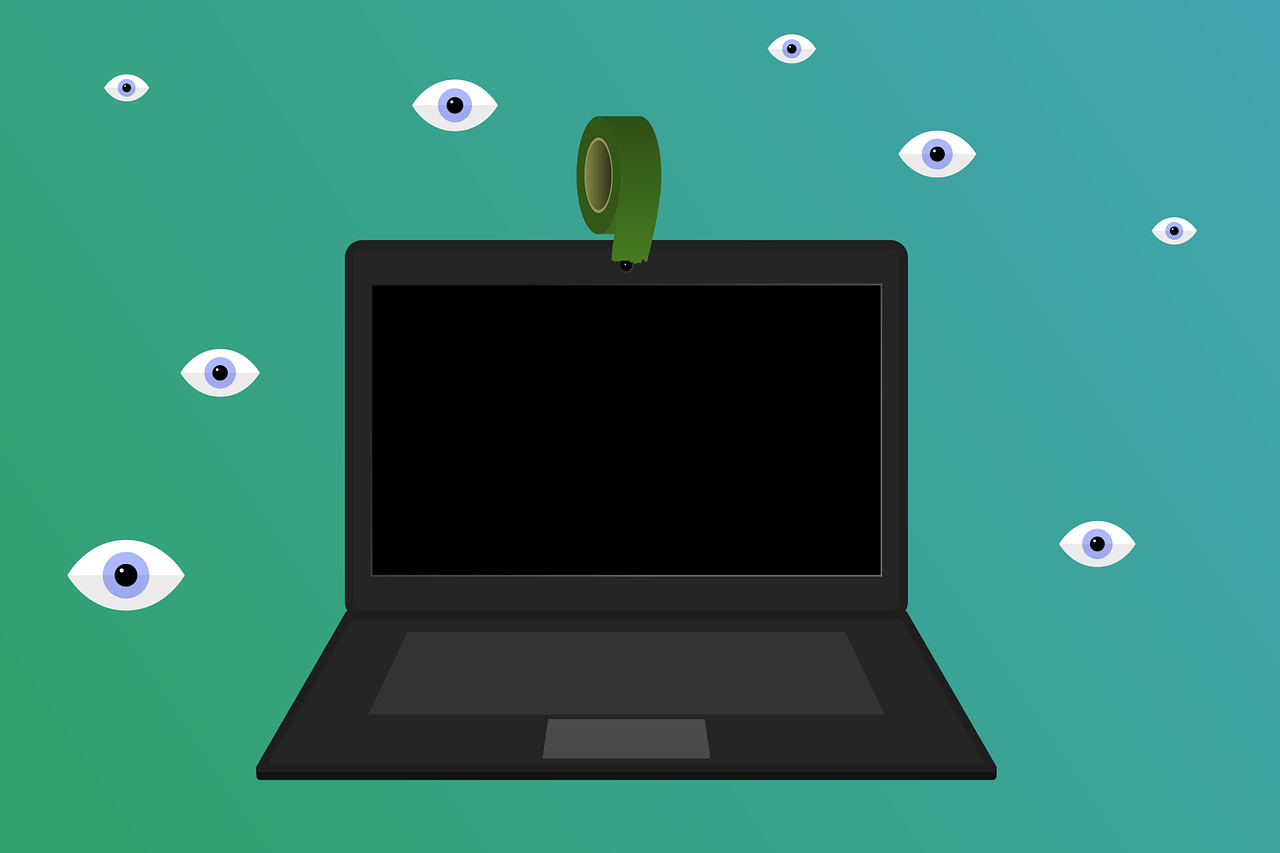
Malicious software exists that allows computer hackers to commandeer your webcams and turn them into bugging devices. At the very least, that means your private life becomes public.
To avoid that happening, take the lead from Mark Zuckerberg and James Comey (yes, they do this): cover your webcams. And do the same with your teenagers’ computers.
For details, read more here:
What’s the Best Way to Cover Your Webcam?
Mark Zuckerberg Tapes Over His Webcam. Should You?

by Bill Hand | Oct 1, 2016 | Uncategorized
 Scam 1
You’re checking email or browsing your favorite sites when all of a sudden the screen is filled with a dire message:
“Your computer is severely infected with dangerous viruses. Immediate action is required to remove these threats. Do NOT turn off your computer. Call the Microsoft technical support phone number below for help!”
You can’t “X” out of the message on the screen and other common techniques for “unsticking” a stuck computer such as CTRL-ALT-DEL don’t work.
Scam 2
After answering your phone, you hear the following:
“Hello. I am a Microsoft support engineer and our network security programs have detected that your computer is severely infected with dangerous viruses. Immediate action is required to remove these threats. Do NOT turn off your computer!”
It’s All Part of the Ruse
In either scenario, the scammers next persuade you to grant them access to your computer via a remote support website. Once connected, you’re shown a number of files you’ve never seen before and are told these are very dangerous and must be removed immediately.
The technician then explains, “We need to install high-power anti-virus and anti-malware programs. Then you’re quoted the price for 1, 2 or 3 years of “protection.”
This is Where You Get Into Big Trouble
If you agree to purchase the protection, you’re asked for your credit card information, or, to save a few dollars, your bank checking account number and routing number. Once the transaction is confirmed, you’re assured everything will be OK.
Avoid Trouble by Asking Yourself These Questions
Most people have, at one time or another, needed to contact some company’s tech support. Usually you have to wait; sometimes for a long time. Do you really think Microsoft has people sitting around watching for problems with your computer? Do you further imagine that a technician then sends your computer a crippling screen message or calls you to provide immediate assistance?
Have you ever heard of the protection software the technician wants to install on your computer? It certainly won’t be a well-known anti-virus such as Norton, McAfee, AVG, Avast or a dozen other good quality programs. And it won’t include well-known anti-malware software such as Malwarebytes, Spybot Search & Destroy, AdAware, Super AntiSpyware or a dozen other tools.
Does the price seem reasonable? There are many free anti-virus and anti-malware programs and the paid programs typically cost $49-$69 per year and may provide coverage for up to three computers at your home or facility. If you’re quoted $149-$299 per year for this unfamiliar software, does that make sense?
(I suggest you think about the quoted price in terms of purchasing a new computer. A typical new desktop computer can be had in the range of $350-$450. If you were quoted $897 for three years of protection, that same dollar amount could buy you two new computers.)
Did you ask about the refund policy? With most purchases, especially those resulting from unsolicited email or phone calls, consumers have some refund or money-back rights. Some “technical help” operations will even provide a contract for you to review and (electronically) sign. Did the refund section indicate you are entitled to a FULL refund within a defined number of days; typically 3 to 7 days? If a FULL refund is not mentioned, how much will be refunded if you decide you want to cancel the purchase?
If you are running OS X (and not Windows), why are you talking to someone about Windows support?
The Scammers’ Big Advantages
The weapons used against you at the outset of either scam were surprise and fear. I hear it often from my clients, “The phone call came out of the blue.” “It was on my screen when the computer started.” “They said my computer would be ruined if I didn’t act fast.” “They said my computer was violating laws regarding Internet use.”
These Are Your Secret Weapons
Calm thinking, a little research and your computer’s OFF button.
Your Steps In Case of Scam #1
- Write down the company name and phone number that appear in the scam screen message.
- Turn off your computer in the usual way. If that doesn’t work, press & hold the power button for 5 – 6 seconds.
- After you power up again, do an Internet search on the “assistance” company.
- Do an Internet search on the phone number on the screen. There are many sites that catalog phone numbers of suspected scam operations.
Your Steps In Case of Scam #2
- If they called you and want to connect with your computer, ask for a call-back number so you have time to research a bit. If they will not supply a call-back number, hang up!
- If things sound legitimate, ask for the product name(s) or provider(s) of any software you are asked to purchase. Then ask for a call-back number so you can research the software.
- Ask about the refund / cancellation policy. If they have a refund policy, ask how much will be refunded. Does recovering just $400 of your $600 purchase seem like a fair refund?
- Contact a technical support person or company you know and trust (like PC Assistants). Describe what happened and ask for an opinion and advice. Since the scam operators typically work a specific area code or codes, local support operations are likely to have encountered the scam already.

by Bill Hand | Dec 21, 2015 | Uncategorized
Mailing lists are essential, especially this time of year when we’re eager to send out holiday greetings to family, friends, colleagues and clients. Excel is a spreadsheet program that can be used as a database that many of our clients use to maintain such a list; it’s a software package I highly recommend. In turn, my clients have told me that Avery is the service they use to create labels from their Excel data. And, after doing work with these clients on their holiday card projects, I’d have to say that Avery does provide an excellent service.
Like other on-line sites, Avery nicely guides you through the label design and print process. What I especially like, however, is that it provides the option for users to maintain full control of their data. I tell my clients they have chosen their service wisely when they use Avery. (By the way, I have no affiliation whatsoever with Avery.)
If you’d like one of us from PC Assistants help you create an Excel database for a mailing list, contact us now. Of course, we can also help you merge that data with the service/software of your choice.
If you start next year’s holiday shopping on December 26, why not get a head start on compiling those important addresses? To get you motivated, take a look at Avery How to Go From Mailing List to Address Labels.
